Before the Breach: Reading the Quiet Signals Your Device Sends Before an Attack Lands
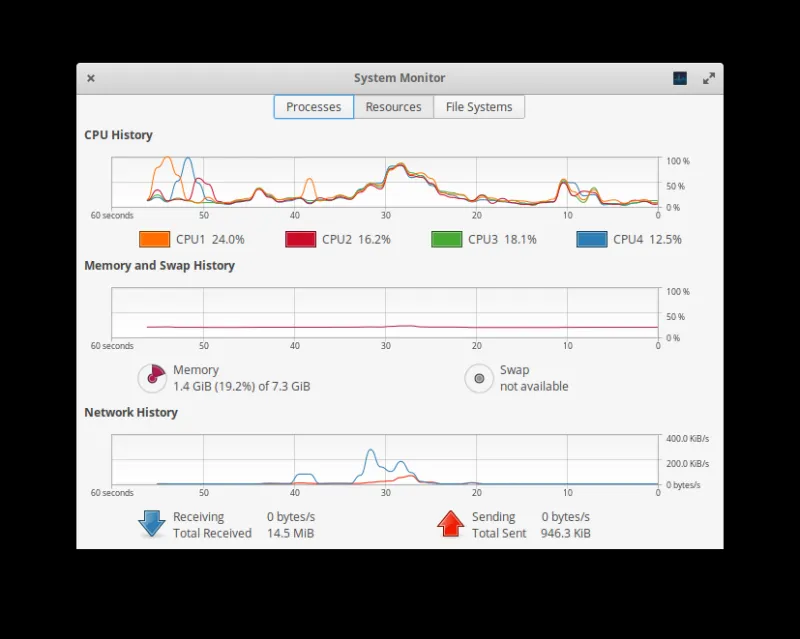
Photo: Breakover, CC BY-SA 4.0, via Wikimedia Commons
The popular image of a cyberattack is instantaneous — a single click, a darkened screen, a ransom note. In reality, most successful intrusions unfold over weeks or months. Attackers spend considerable time inside a system before they do anything visible. They map the network, escalate privileges, identify valuable data, and position themselves for maximum impact. During that entire reconnaissance phase, the device being targeted is quietly broadcasting signals that most users never learn to recognize.
Performance degradation is among the most consistent and underappreciated of those signals. Understanding what it looks like — and, critically, how to distinguish it from ordinary wear and tear — is one of the more practical skills a security-conscious person can develop.
Why Attackers Move Slowly on Purpose
Sophisticated threat actors have little incentive to rush. Speed increases the probability of detection. A slow, methodical presence inside a network or endpoint allows an attacker to observe normal behavioral patterns, avoid triggering security alerts, and exfiltrate data in volumes that blend with routine traffic.
This deliberate pace is sometimes called "low and slow" tradecraft. Security researchers who analyze post-breach forensics frequently discover that the initial point of compromise preceded the damaging payload by 60 to 200 days. During that window, malicious processes are often running quietly in the background — consuming resources, phoning home, and preparing the ground for whatever comes next.
That background activity leaves traces. The challenge is that those traces closely resemble symptoms most people attribute to aging hardware, software updates, or ordinary multitasking.
Performance Degradation as a Red Flag
Not every slow computer signals an intrusion. But there is a meaningful difference between gradual, progressive slowdowns consistent with hardware aging and the kind of erratic, episodic performance drops that accompany hidden background processes.
Unexplained CPU and memory spikes are among the earliest indicators. Malware conducting reconnaissance, running keyloggers, or participating in a botnet must use processing power to do so. Task Manager on Windows or Activity Monitor on macOS will reveal processes consuming resources. The concern arises when processes you do not recognize — or processes masquerading as legitimate system files — appear near the top of resource consumption lists, particularly when the device should be idle.
Battery drain on laptops and mobile devices follows a similar logic. Batteries degrade naturally over time, but a device that previously lasted eight hours on a charge and now struggles to reach four — without any significant change in usage patterns — warrants scrutiny. Persistent background processes, including those associated with malware, maintain constant activity that prevents the processor from entering low-power states.
Thermal anomalies are a related indicator. A laptop that runs noticeably hotter than it once did, or whose cooling fan activates frequently during periods of apparent inactivity, is a device whose processor is working harder than it should be. Heat is a byproduct of computation. If computation is happening when it should not be, heat will follow.
Network latency and unusual traffic patterns round out the picture. Some forms of malware — particularly those involved in data exfiltration or command-and-control communication — generate network activity at odd hours or in unusual volumes. A home router's traffic logs, or a tool such as GlassWire on Windows, can reveal connections to unfamiliar IP addresses or domains, particularly those resolving to infrastructure in unexpected geographic locations.
The Diagnostic Framework
Rather than waiting for an obvious symptom, security-aware users can conduct periodic audits of their devices using a structured approach. The following framework is designed for a general audience and requires no specialized tools beyond what most operating systems already provide.
Step one: Establish a baseline. The value of anomaly detection depends entirely on knowing what normal looks like. Spend a few minutes documenting your device's typical CPU usage at idle, average battery life under standard conditions, and the names of processes that consistently appear in your task manager. Screenshot these figures and store them somewhere accessible. This baseline becomes your reference point.
Step two: Audit running processes. At least once a month, open your task manager or activity monitor while the device is not running any user-initiated applications. Sort processes by CPU and memory consumption. Research any unfamiliar process names — a simple web search will usually confirm whether a process is legitimate. Pay particular attention to processes that have generic or system-sounding names but are located in unusual directories.
Step three: Review network connections. On Windows, the command [netstat](https://en.wikipedia.org/wiki/Netstat) -ano run from an elevated command prompt will display all active network connections and the process IDs associated with them. On macOS, the equivalent is netstat -an. Cross-reference active connections against your list of running processes. An outbound connection to a foreign IP address from a process you cannot identify is a meaningful red flag.
Step four: Check startup and scheduled tasks. Malware frequently installs itself as a startup item or scheduled task to ensure persistence across reboots. On Windows, the Autoruns utility from Microsoft's Sysinternals suite provides a comprehensive view of everything configured to launch automatically. On macOS, reviewing Login Items in System Settings and examining the LaunchAgents and LaunchDaemons directories serves the same purpose.
Step five: Correlate and contextualize. A single anomaly rarely constitutes evidence of compromise. A cluster of anomalies — elevated CPU usage, unfamiliar network connections, a new startup entry, and unusual battery behavior — occurring in combination and without a clear innocent explanation warrants escalation. At that point, running a reputable malware scanner, consulting an IT professional, or in a business context notifying your security team is the appropriate response.
Distinguishing Genuine Threats From Ordinary Wear
The risk of this kind of diagnostic framework is over-interpretation. Not every performance issue reflects malicious activity, and unnecessary alarm is counterproductive.
Some useful heuristics for distinguishing legitimate performance degradation from suspicious activity:
- Timing matters. Legitimate slowdowns tend to be consistent across usage patterns. Suspicious activity often concentrates at specific times — late at night, immediately after connecting to a new network, or following the installation of a particular application.
- Onset matters. Gradual degradation over many months is more consistent with hardware aging. Sudden degradation following a specific event — downloading a file, opening an email attachment, visiting an unfamiliar website — warrants closer examination.
- Reversibility matters. If a performance issue resolves after a reboot and does not return, it is less likely to reflect persistent malware. If it returns reliably, something is maintaining that presence.
The Broader Principle
Cybersecurity awareness is often framed around dramatic threats — ransomware, data breaches, identity theft. These are real and serious. But the unglamorous truth is that most successful attacks depend on a period of quiet, undetected presence that users could, in principle, identify if they knew what to look for.
Your device is not a passive object. It is a system that generates continuous behavioral data. Learning to read that data — not obsessively, but periodically and methodically — is one of the few defensive practices that can genuinely interrupt an attack before it reaches its conclusion.
The signals are there. The slowdown before the shutdown is rarely random. The question is simply whether anyone is paying attention.